Daily operations
Take your first order
Ring up a sale from an empty cart to a printed receipt — order type, choices, discounts, cash tendered and change — and know what to check afterwards.
4 min read · Updated August 27, 2026
This is the screen your cashiers spend their day on, so it is worth ten minutes of your own before you hand it over. Everything below happens under Point of Sale.
Before the till will take an order, a shift has to be open. If you see Start Your Shift First, that is what it means — see start and close a shift.
The screen, in three parts
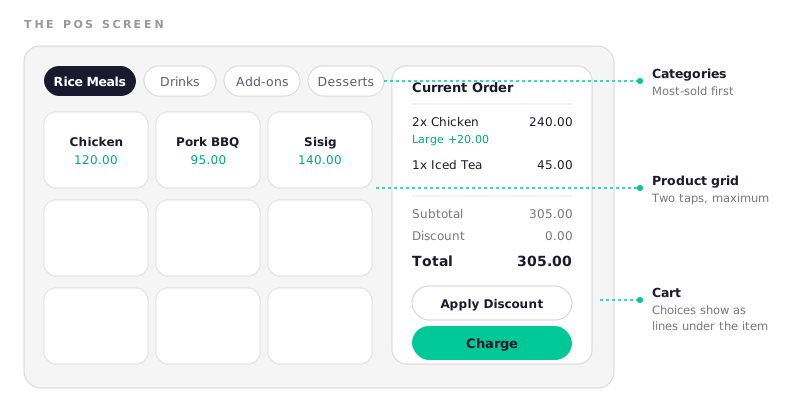
Category tabs run across the top, products fill the middle, and the cart sits down the right-hand side with the running total and the charge button. On a phone the cart collapses to a bar you tap to open.
Ring up a sale
- Pick the order type — dine-in, takeout or delivery. It is asked once per order, it affects which packaging deducts from stock, and it is what makes the order-type split in your reports mean anything.
- Tap products to add them. Tap again to add another. If a product has choice groups, the choice prompt opens automatically — pick the size, the flavour, the add-ons, and the upcharges appear as lines under the item in the cart.
- Adjust quantities in the cart. Each line can be increased, decreased or removed. An item with different choices makes its own line, which is correct: two large and one regular are not the same thing.
- Apply a discount, if any — see below.
- Tap Charge, choose the payment method, and take payment.
Choices and duplicate lines
When a customer orders "the same again but large", use Add copy as on the existing line rather than starting from the product grid. It carries the previous choices across so you only change the one that differs — noticeably fewer taps on a repeat order.
Discounts
Two routes at checkout, both under Apply Discount / Promo:
- Preset promos you created under Discounts — the safe option, because the amount and the scope are fixed in advance.
- Custom discount — a one-off amount or percentage typed by the cashier.
Every discount is recorded against the order and totalled separately in reports and on the shift close, so "discounts given" is a number you can actually watch. If it climbs, you know where to look.
Take payment
Choose the method:
| Method | What the till asks for |
|---|---|
| Cash | Amount tendered, then it works out the change |
| Card | Confirmation only — the card terminal is separate |
| E-wallet | Confirmation only — the customer pays on their phone |
For cash, type what the customer handed over and let the screen calculate the change. It is faster than doing it in your head and it removes the most common source of a short drawer at close.
Only cash affects the drawer count at shift close. Card and e-wallet sales are counted as revenue but excluded from the cash reconciliation, because they never touched the cash box.
The receipt
After a successful payment you can print. On the Android app with a paired Bluetooth printer it goes straight to the thermal printer; everywhere else it opens the normal print dialog. Switch on Auto-Print After Payment in Settings if you want it without the extra tap.
Full details: receipts and Bluetooth printing.
Check the sale landed
Worth doing once, on your very first order:
- POS → Daily Sales shows the order with its number, time, cashier, payment method and total.
- Inventory shows the ingredients deducted, if the product has a recipe.
- The receipt shows your business name, the items with their choices, any discount, and the tax line.
If all three are right, your setup is sound and you can open the doors.
Frequently asked questions
Why does the POS say I have to start a shift first?
Every order belongs to a shift, so that the cash count at the end of the day has something to reconcile against. Open a shift with the drawer's starting float and the till unlocks. If it instead says Previous Shift Not Closed, close that one first.
Can I edit an order after payment?
No. A completed order is a record of what happened, so it is not editable. If it was wrong, void it and ring up the correct order — that leaves both the mistake and the correction visible, which is what you want when you are reconciling later.
How do I split a bill between two payment methods?
Kasenso records one payment method per order. For a split bill, ring the items up as two orders — one paid by cash and one by card — which also keeps your payment-method totals accurate.
Does the cashier see how much profit an item makes?
No. Costs and margins live in Inventory, Recipes and Reports, none of which a cashier can open unless you tick those pages for them. The till shows prices only.
What happens if the internet drops mid-order?
Nothing visible. The order completes, the receipt prints, and the sale is held on the device until the connection returns. See working offline.
Next: start and close a shift.