Getting started
Set up staff accounts and permissions
Create cashier logins, decide exactly which pages each one can open, and save the combination as a reusable role so the next hire takes thirty seconds.
4 min read · Updated August 27, 2026
Staff never sign up for themselves. You create their account from inside Kasenso, set what it can reach, and hand over the username and password. That is deliberate — it means nobody can attach themselves to your business, and it means you can revoke access the moment someone leaves.
Everything here lives under Staff, which only an admin can open.
The two roles
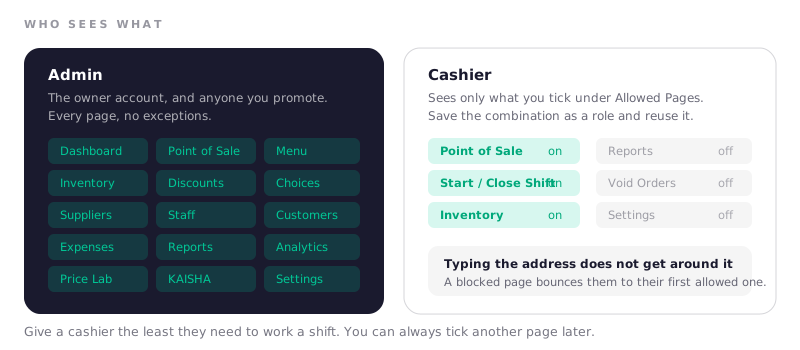
There are two account types, and the difference is not seniority — it is visibility of money.
| Admin | Cashier | |
|---|---|---|
| Point of sale | Yes | Yes |
| Products, prices, discounts | Yes | No |
| Inventory and recipes | Yes | Only if allowed |
| Reports and profit figures | Yes | Only if allowed |
| Staff, settings, backups | Yes | Never |
An admin sees everything. A cashier sees only the pages you tick.
Create a staff account
Under Staff → Staff Management, add a member and fill in:
- Full name — what shows in reports and on the shift record.
- Username — what they type to sign in. Short and lowercase saves grief at 6am.
- Password — minimum six characters. Set it now and let them change it later.
- Email and contact number — optional, useful for recovery.
- Allowed Pages — the important one, below.
- Account Status — switch this off instead of deleting when someone is suspended or on leave, and their history stays intact.
Choose what they can reach
Allowed Pages is a list of tick boxes, one per screen. A cashier only sees the pages you tick, and the ones you leave unticked are genuinely closed: navigating to the address by hand bounces them straight back to their first allowed page.
Some pages are worth calling out because they are separately controllable:
- Void Orders — the ability to cancel a completed sale. The most common answer here is off; see void orders.
- Daily Sales — today's takings by order. Usually on, so a cashier can answer a customer query.
- Start Shift / Close Shift — normally on, or they cannot open the till.
- Daily Report — the manager's one-day summary. Usually off for cashiers.
- Reports and Inventory — on only if that person genuinely needs them.
A sensible cashier set is Point of Sale, Start Shift, Close Shift and Daily Sales. Add Inventory if they also receive deliveries.
Save it as a role
Doing that per person gets old. Under Staff → Roles, create a role — name it Cashier, Shift lead, Kitchen — and tick its pages once. When you add a staff member, pick the role as a template and the ticks come with it.
Changing a role does not silently rewrite the people already on it, so review a member's Allowed Pages if you reorganise a role after hiring.
How many accounts you get
As many as you need. Staff accounts are unlimited, so a second counter or a third relief cashier costs nothing — see pricing.
When someone leaves
Switch Account Status off first. It revokes access immediately while keeping every shift, sale and void they were ever attached to, which you need for your records. Delete the account only when you are certain you will not need to look anything up — deletion permanently revokes access and cannot be undone.
Change the shared device password too, if there is one.
Frequently asked questions
How do I reset a staff member's password?
Open their account under Staff, type a new password in the password field and save. Leaving the field blank keeps their existing password, so you can edit someone's name or permissions without disturbing their login.
Can a cashier see how much profit the business makes?
Only if you tick Reports or Analytics for them. By default a cashier sees the till and nothing else — no margins, no costs, no profit figures.
What is the difference between deactivating and deleting a staff account?
Deactivating switches off access and keeps all their history — the right choice for someone suspended, on leave, or recently departed. Their password stops working on every device at once, and switching them back to active restores it. Deleting removes the account permanently and cannot be undone. Deactivate first; delete later, if ever.
Can two cashiers be signed in at the same time on different devices?
Yes. Each account can be signed in on its own device, and orders are tagged to whoever took them, which is what makes the per-cashier figures in reports meaningful.
Why can my cashier not open a page I ticked?
Two things to check: that you saved the account after ticking, and that they signed out and back in. Permissions are read when the profile loads, so an already-open session can be looking at the old list.