Daily operations
Receipts and Bluetooth printing
Pair a 58mm or 80mm thermal printer with the Kasenso Android app, control what appears on the receipt, and know why printing works differently in a browser.
6 min read · Updated August 27, 2026
Kasenso prints to cheap Bluetooth thermal printers — the 58mm and 80mm units sold everywhere for a few thousand pesos — with no print server, no drivers and no cables.
One important constraint up front: Bluetooth printing is Android only. The printer settings do not appear in a web browser, because a browser cannot talk to a Bluetooth printer directly.
Where a receipt goes
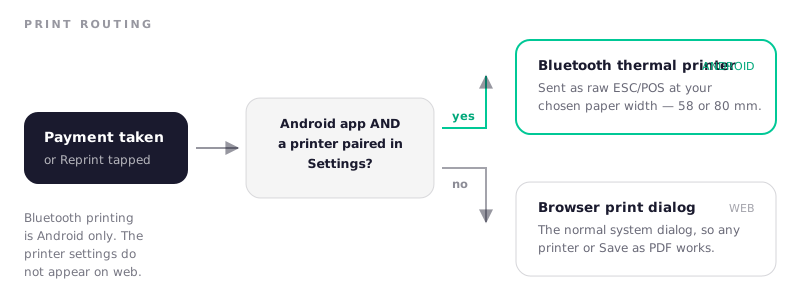
- Android app + a paired printer → straight to the thermal printer as raw ESC/POS at your chosen paper width.
- Anything else → the normal browser or system print dialog, where you can use any printer or save a PDF.
The same account can do both — a tablet at the counter printing to Bluetooth, a laptop in the back office saving PDFs.
Pair a printer
- Install the Kasenso Android app.
- Switch the printer on and pair it in Android's own Bluetooth settings
first. This is the step people skip. Most units pair with
0000or1234. - In Kasenso, open Settings → Receipt Settings and select the printer.
- Set Paper Width to 58mm or 80mm to match the paper you actually load.
- Print a test receipt.
If the printer does not appear in the Kasenso list, it is not paired at the Android level — go back to step 2. This accounts for most pairing problems.
Control what prints
Under Settings, the receipt is assembled from:
- Business name, address, contact number and tax number from POS Identity — the header block. Each of the last three has its own switch under Receipt header, so a shop that would rather not print its address can leave the address on file and off the paper.
- Your tax number's label — whatever your country calls it. Type
VAT No.,ABN,GSTIN,TINor anything else next to the number itself, and that is what prints. It is a label, not a validated field; we do not check the number against anything. - Temporary Receipt — marks receipts as provisional if you are not yet issuing official ones.
- Contact Info Shown to Customers — Facebook, Instagram or Viber, printed at the foot. Free advertising on something the customer is already holding.
- Hide tax on receipt — for shops that do not itemise it.
- Auto-Print After Payment — prints without a second tap.
Item lines carry their choices and upcharges underneath them, and any discount prints as its own line between subtotal and total.
Send a receipt instead of printing it
Not every customer wants paper, and not every counter has a printer working on the day. Send, beside Print on the receipt, hands over a PDF of exactly the same receipt.
- On the Android app it opens Android's own share sheet — Messenger, Viber, WhatsApp, Gmail, SMS, whatever is installed. Tap the one the customer already uses.
- On a phone browser it uses the browser's share sheet.
- On a computer it downloads the PDF, which you can attach to anything.
To keep a copy on the phone rather than send it, choose Save to Files or Drive inside the share sheet. That is also how you save one for your own records — Kasenso does not need permission to your storage, because you pick where it goes.
The sent copy is the printed copy. Same lines, same order number, same total,
same tax label, and the same TEMPORARY RECEIPT stamp if you use one — so a
customer holding the PDF and a shop holding the paper are never looking at two
different documents. Amounts read PHP468.00 rather than ₱468.00, because the
text comes from the thermal printer's own character set.
You can send a receipt for an earlier sale too: open it from POS → Daily Sales and use the same button.
Auto-print or on request
Switch Auto-Print After Payment on for a busy counter where everyone expects paper — it removes a tap from every order. Leave it off for a stall where most customers wave the receipt away; you will spend noticeably less on rolls, and the print button is still there when someone wants one.
Reprints
A receipt can be printed again from the order. Reprints are marked as such, so a duplicate cannot be passed off as a second sale — which matters if a customer brings one back with a query.
When printing fails
| What you see | What it usually is |
|---|---|
| Printer missing from the Kasenso list | Not paired in Android's Bluetooth settings |
| Prints garbled or wraps oddly | Paper width set to 58mm when the printer is 80mm, or the reverse |
| Nothing happens, no error | Printer asleep or out of range — power-cycle it |
| Faint or blank paper | Thermal roll loaded upside down, or the roll has run out |
| Works on the tablet, not the laptop | Expected — Bluetooth printing is Android only |
Thermal paper only prints on one side. If a fresh roll produces blank paper, flip it before assuming the printer is broken.
Frequently asked questions
Which Bluetooth printers work with Kasenso?
Standard ESC/POS thermal printers at 58mm or 80mm — the common inexpensive models sold for receipt printing. There is no approved-brand list; if it pairs with Android and speaks ESC/POS, it works.
Can I print receipts from a web browser?
You can print, but not to a Bluetooth printer. In a browser Kasenso opens the normal print dialog, so you can use a USB or network printer, or save the receipt as a PDF. Bluetooth thermal printing requires the Android app.
Is Bluetooth receipt printing a paid feature?
No. Bluetooth printing on Android at both 58mm and 80mm is included in the free plan.
Why does my receipt print with the wrong shop name?
The header comes from Settings → POS Identity. Update the business name, address and contact number there and the next receipt picks them up — receipts are built at print time, not stored.
Can I print or send a receipt for an earlier order?
Yes. Open POS → Daily Sales, pick the sale, and use Print or Send. That screen covers the current day, for one cashier at a time — use the staff picker to look at someone else's sales.
A reprint is not marked as one, so it is indistinguishable from the original. Nothing about it creates a second sale — your reports count the order, not the printing — but if you hand a customer a second copy, treat both as the same receipt.
Next: working offline.