How long does it take to set up a POS for a small shop?
October 18, 2026 · Jott Myth · 8 min read
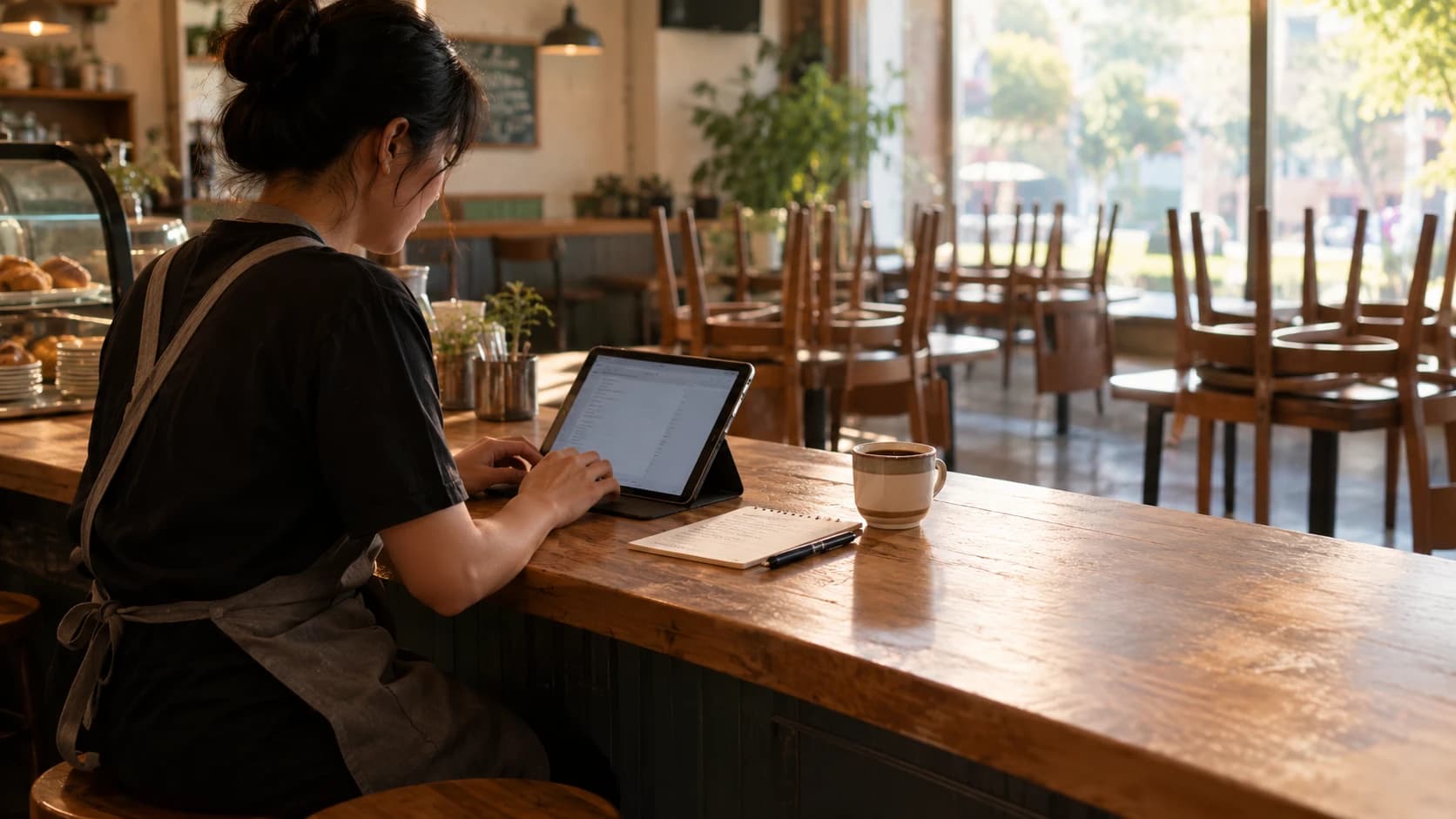
You signed up, opened the app, and found an empty screen asking for products, stock items and recipes. It looks like a weekend's work, so it waits, and the notebook stays on the counter.
It is a lot less than a weekend, and you only do it once.
How long does it take to set up a POS for a small shop?
About an hour for a café or food stall with 30 products, recipes included, and about twenty minutes if you only enter products and prices. It is a one-time job. Everything saves as you go, so three 20-minute sittings between customers work just as well as one long one, and you never do it again.
Once it is done, the daily work is ringing up sales, which you were doing anyway.
Why does a new POS feel like more work than a notebook?
Because the first week is when it gives you the least back.
A notebook asks for nothing up front. A point of sale asks for your whole menu before it does anything useful, and if you stop halfway — products entered, no stock items, no recipes — you get the worst of both. You type every sale into a screen and still count the shelves by hand at night, because nothing connects what you sell to what you use.
That half-finished setup is where most owners give up. The part that makes the work worth it is the part they never reach.
What do you actually get for the hour?
The hour buys four things a notebook can't do on its own.
| Job | With a notebook | Once setup is done |
|---|---|---|
| Knowing what is left in stock | Count the shelves | Each sale takes its stock off; low-stock warnings arrive before you run out |
| Knowing what a dish costs you | Work it out on paper, once, and never update it | The recipe screen shows the true cost per serving against the price |
| Today's sales total | Add up the page at closing | Kept in POS → Daily Sales as you sell |
| Spotting waste and loss | Only when something is obviously missing | The gap between what recipes say you used and what is on the shelf |
Two of those are worth putting numbers on.
The nightly count. Say you check 20 stock items by hand every night, at about 45 seconds each. That is 15 minutes a night, or 7½ hours across a 30-day month. With recipes linked, Kasenso keeps the count as you sell, and the stock guide recommends one physical count a month to check it. The setup hour is back within the first week.
The cost of a dish. A chicken rice bowl sells for $6.50. Its recipe:
- Chicken, 0.25 kg at $5.00 a kg = $1.25
- Rice, 0.15 kg at $1.50 a kg = $0.23
- Bowl with lid, 1 at $0.15 = $0.15
That is $1.63 of ingredients and packaging, or 25% of the price, and Kasenso works it out for every product with a recipe. When chicken goes up to $6.00 a kg and you update its cost, the bowl's cost becomes $1.88 without you redoing any sums. The menu pricing guide covers what to do with that number.
What order should you set up a POS in?
Each step needs the one before it, so the order saves you going back. The times are for a 30-product food menu.
| Step | What you do | Time |
|---|---|---|
| 1. Products | Categories first, then each product with its name and price | 20 min |
| 2. Choices | Sizes, flavours and add-ons the cashier picks at the till | 10 min |
| 3. Stock items | What you buy and keep: chicken by the kilo, cups by the piece | 10 min |
| 4. Recipes | What one serving of each product uses, starting with your 10 best sellers | 10 min |
| 5. Business settings | Your name, address and logo on the receipt | 5 min |
| 6. A test sale | Ring up one order and check the stock dropped | 5 min |
That adds up to an hour. Stock items can go before products if you prefer; what matters is that they exist before you write recipes, because a recipe can only use items that are already there.
You do not need to keep this table open. The Welcome to Kasenso card on your dashboard lists the same steps, ticks each one off as you finish it, and links to its guide.
How can you set up a POS faster?
- Look at the sample first. Tap Show me a sample on the welcome card and Kasenso adds a bowl, a drink and a combo, with their stock items and recipes already linked. Five minutes poking at a finished example beats guessing, and Remove sample clears it in one tap. See the sample menu.
- Type from a photo of your menu board, one category at a time. You are less likely to end up with three spellings of the same drink.
- Use choices instead of copies. Milk tea in three sizes and four flavours is one product with two choice groups, not twelve products.
- Write recipes for your 10 best sellers first. They are most of your stock movement. Fill in the rest over the week.
- Import a list if you sell goods. A shop set up as Retail goods or Food & retail can load its whole product list from Excel or Google Sheets under Import / Export. See importing products.
- Split it up. Twenty minutes before opening, twenty in the afternoon lull, twenty after closing. Nothing is lost between sittings.
Do you have to finish setup before your first sale?
No. You can sell as soon as your products are in. Stock items and recipes can come later without redoing anything: add a recipe to a product next week and every sale from then on takes its stock off.
What you miss in the meantime is the part that saves time. Until recipes are linked, the stock screen only knows what you typed in, so the nightly count stays.
What if you only have 20 minutes today?
Spend them on your 10 best-selling products: name, category, price. Then ring up a test sale. That is enough to take real orders tomorrow and get the end-of-day total for free. Next sitting, add the stock items those 10 products use and their recipes. The week after, the rest of the menu.
Frequently asked questions
How long does it take to set up Kasenso POS?
About an hour for a 30-product food menu with recipes, or twenty minutes for products and prices only. It is a one-time job that saves as you go, so you can split it into short sittings. Retail shops with a product list in a spreadsheet can import it instead of typing it.
Why should I add recipes to my POS?
A recipe tells the POS what one serving uses, so every sale takes that stock off by itself. You get live stock levels, a warning before you run out, the true cost of each dish, and a measurable gap when stock goes missing. Without recipes, you still count the shelves by hand.
What order should I set up my POS in?
Products first, then choices, then stock items, then recipes, then business settings, then a test sale. Each step needs the one before it. Stock items can come before products if you prefer, as long as they exist before you write recipes.
Can I see an example setup before I build my own?
Yes. Tap Show me a sample on the Kasenso dashboard's welcome card. It adds a few products named "Sample ·" with stock items, recipes and a combo already linked, so you can open them and test-sell them. Remove sample deletes them in one tap.
Can I import my products from a spreadsheet?
Yes, if your shop is set up as Retail goods or Food & retail. Save the sheet as CSV and load it under Import / Export on the Products screen. Kasenso previews every row before saving and skips rows it can't use, saying why. Food menus are added product by product.
Do I have to finish setting up before I can sell?
No. You can sell as soon as your products are in, and add stock items and recipes later without redoing anything. Until recipes are linked, sales do not take stock off, so you keep counting by hand until then.
How much does it cost to set up Kasenso?
Nothing. Kasenso's free plan does not expire and needs no card, and setup is done by you in the app, with no installation fee. The only cost is your time: about an hour for a 30-product menu.