What POS is right for a 3D printing shop?
November 3, 2026 · Jott Myth · 13 min read
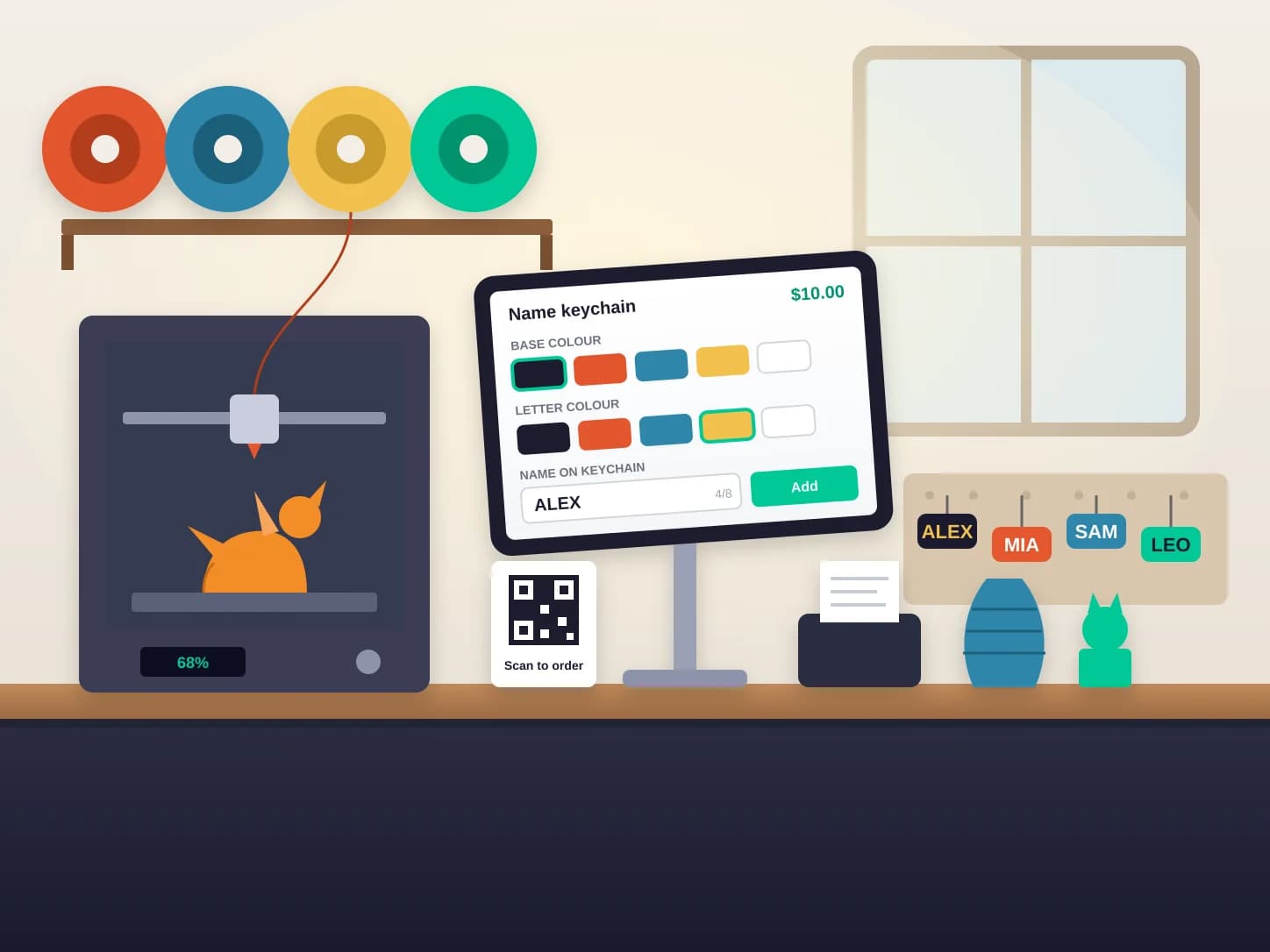
A 3D printing shop sells three different things over the same counter. A dragon you printed last week sits on the shelf, waiting to be bought. A name keychain doesn't exist yet: you print it after the customer picks the colours and types the name. And a replacement part for someone's dishwasher starts as a photo on their phone and a question about price.
Most tills handle one of those well. A print shop needs all three.
What POS is right for a 3D printing shop?
A 3D printing shop needs a POS that sells made-to-order items and ready stock side by side. It should ask for colours, materials and a typed name without a separate product for each combination, keep a count of prints already on the shelf, record what each print really cost you, take online orders paid ahead, and keep selling offline at a market stall.
Why doesn't a café or shop POS fit a print shop?
A shop POS expects everything it sells to already exist. Each product gets a stock count, and a sale takes one off. That works for the dragons on your shelf. It doesn't work for a keychain you haven't printed yet: it either shows as out of stock or counts down into the minus numbers.
The bigger problem is combinations. A name keychain with a base, a key and a letter colour, chosen from 8 filaments each, comes in:
- 8 × 8 × 8 = 512 combinations
Set up as separate products, that is 512 buttons to price and keep up to date. As sizes and colours, it is far past the 100 a product can hold, and each would need a stock count for something that isn't on any shelf. Neither works, so the colours end up written on a sticky note beside the till, and the wrong colour gets printed.
A café POS has the opposite problem: it is built around recipes, a kitchen screen and dine-in tables, none of which a print shop uses.
What a 3D printing shop sells, and how each should work
| What you sell | Example | What the POS should do |
|---|---|---|
| Ready prints | Articulated dragon, phone stand, fidget toy | Keep a stock count, take one off per sale, warn when low |
| Ready prints in sizes or colours | Dragon in small and large, in 3 colours | One product, a count for each size and colour |
| Made to order | Name keychain, custom sign, cake topper | Ask for colours and the text, keep no stock |
| Custom jobs | A replacement part from a customer's file | Charge by size or print time, without a new product each time |
| Supplies | Spools of filament, nozzles for hobbyists | Keep a stock count, scan the barcode |
Kasenso does the first four with the same till. Here is how.
Made-to-order prints: choices and a typed name
In Kasenso, a made-to-order print is one product with questions attached, called Choices. You make a Colours group once, with every filament you print in, and give the special ones an extra charge, like silk gold for +$1.00 or glow in the dark for +$1.50. Then the keychain gets three questions that all use that group: base colour, key colour and letter colour. Ask for text adds a box for the name, with a letter limit.
At the till, tapping the keychain asks every question in one window, and
Add to Order stays greyed out until each one is answered. The cart line
reads Base colour: Black, Key colour: Glow in the dark, Letter colour: Silk gold, Name on clicker: ALEX, and it prints on the receipt. Whoever runs the
printer has every detail on paper, so nobody has to remember what the
customer said.
The price adds up on its own:
| Amount | |
|---|---|
| Name keychain | $6.00 |
| Key colour: Glow in the dark | +$1.50 |
| Letter colour: Silk gold | +$1.00 |
| Extras: Gift box | +$1.50 |
| Total | $10.00 |
When you buy a new filament, add it to the Colours group once and every product that uses the group offers it straight away.
Ready prints: a stock count for each one
Prints you make ahead in batches are ordinary stock. In retail mode, switch on Track stock, type how many you have, and set Low at, the count at which Kasenso warns you. Each sale takes one off. A dragon in two sizes and three colours is one product with six sizes and colours, each with its own count, price and barcode, so you know it's the large red one that's running out, not just "dragons".
A print that cracks on the shelf comes off with a write-off, so the count stays honest and the loss shows in your reports.
Custom jobs: charge by size or print time
Kasenso has no quote screen, and the till can't type a one-off price on a line. For one-off jobs, make a single Custom print product with a choice for its price band, such as print time:
| Print time | Extra charge on a $10 base |
|---|---|
| Up to 2 hours | +$0 |
| 2 to 5 hours | +$12 |
| 5 to 10 hours | +$28 |
Add Ask for text for a job note, like dishwasher wheel, PETG, black. The job then rings up in a few taps and prints on the receipt with its note.
How should a 3D printing shop price a print?
Price a print from everything it uses, not just the filament. Add the filament, the electricity, the wear on the printer, an allowance for prints that fail, and your own time setting up and cleaning it. Then add your margin on top. Filament alone is often less than a fifth of the real cost.
Take a figure that uses 60 g of PLA and prints for 4 hours:
| Cost | Working | Amount |
|---|---|---|
| Filament | 60 g × $0.02 a gram ($20 for a 1 kg spool) | $1.20 |
| Electricity | 0.12 kW × 4 h × $0.20 a kWh | $0.10 |
| Printer wear | $0.30 an hour × 4 h (a $600 printer over 3,000 hours, plus parts) | $1.20 |
| Failed prints | 10% of the $2.50 above | $0.25 |
| Your time | 15 minutes at $20 an hour | $5.00 |
| Total cost | $7.75 |
For a 50% margin, divide the cost by 0.5: $7.75 ÷ 0.5 = $15.50. The filament was $1.20, under a sixth of the real cost. Price from the filament alone, at three times $1.20, and you'd charge $3.60 for a print that costs you $7.75. Every one you sold would lose $4.15. If margin and markup blur together, margin vs markup shows which to use, and the free pricing calculator does the division.
Then type that $7.75 into the product's Cost price in Kasenso. Your sales reports subtract it from every sale, so they show what each print really made, not just what it took in.
Online orders, paid before you print
A made-to-order print that nobody collects is filament and printer time you can't sell to anyone else. "ALEX" in glow-in-the-dark is no use to the next customer.
With an online store, customers order from a link on your social media page or a QR code at your stall. The store asks the same colour questions and takes the same typed name as the till, and shows your product photos. With Accept Online Payment, they send the money to your own e-wallet or bank account and upload a screenshot. You check the money really arrived before you tap Accept. Switch on Customers must pay online and every online order arrives paid. Kasenso takes no cut.
Accepted orders wait on the till under Ready for pickup until the customer collects. They read out their four-character order code, you check the items and tap Picked up, and the same order can't be handed out twice.
A retail shop can also list itself on Kasenso Marketplace, where people search for shops in their town.
Selling at markets and conventions
Many print shops make half their money at weekend craft fairs and conventions, where the signal drops as soon as the hall fills up. Kasenso keeps selling offline: the till takes orders, asks the choice questions and prints receipts, and everything uploads when the connection comes back. It runs on the phone or tablet you already have, so the stall needs no extra till.
For a busy stall, the same pay-ahead trick works on site. Put the QR code on the table, let people order a name keychain while they browse, and print or pack it for pickup. Selling merch without a long line works through the numbers.
Regular business customers
Schools, makerspaces, architects and engineers often order prototypes and parts every few weeks and pay monthly. A customer account keeps their tab: charge each order with Pay later at the till, take payments when they come in, and see who owes what. Switch on Trade customer and give products a Trade price, and that customer gets the lower price every time they're picked.
Questions to ask before you choose a POS for 3D printing
Whatever system you look at, ask the seller to show you these on the screen:
- Can one product ask for several colours without a product for each combination?
- Can the customer type a name or text, and does it print on the receipt?
- Can each colour or material add its own extra charge?
- Can ready prints keep a stock count while made-to-order items don't?
- Can a print in sizes and colours keep a count for each one?
- Can I enter what a print really costs, so reports show profit and not just sales?
- Does the online store ask the same questions as the till?
- Can online customers pay before I start printing?
- Does it keep selling with no internet at a market?
- Does it charge per device, per month or a cut of each sale? A cut of each sale costs more every month you grow.
How do I set up Kasenso for a 3D printing shop?
Most of it is one sitting:
- Pick Retail goods under What do you sell? when you sign up, or under Settings → What You Sell on an existing account. See retail mode.
- Make a Colours group on the Choices screen with every filament you print in, and an extra charge on special ones. Add an Extras group for things like a gift box.
- Add your made-to-order prints with Track stock off, their choice slots and Ask for text. The name clicker guide walks through one from start to finish.
- Add your ready prints with Track stock on and how many you have. Use sizes and colours for one design in several.
- Put a cost price on every product, worked out as above.
- Switch on your online store and Accept Online Payment, and print the QR card for your counter or stall.
Then ring up your first keychain and check the receipt.
What Kasenso doesn't do yet
It is better to know before you switch:
- No filament stock in grams. In retail mode, a sale takes off one of the product, not 60 g from a spool. Record filament you buy under Expenses, and include it in each print's cost price.
- No quote screen or open price. A one-off job needs a product, such as a Custom print with price bands.
- No deposit at the till. Online orders can be paid in full before you print, but a counter sale is paid at once or charged to a customer account.
- No print queue. Kasenso doesn't talk to your printers or slicer, or track which job is on which machine.
Frequently asked questions
What is the best POS for a 3D printing shop?
The best POS for a 3D printing shop sells made-to-order prints and ready stock in one till. It should ask for colours and typed names without a product for each combination, keep stock counts for ready prints, record each print's real cost, take online orders paid ahead, and work offline at markets.
Can I use a normal retail POS for 3D printing?
You can, but it fits made-to-order work badly. A retail POS expects every product to sit on a shelf, so a keychain you haven't printed yet looks out of stock. A keychain in three colours from 8 filaments is 512 combinations, far too many to add as separate products. Choices solve this with one product.
How do I sell personalised 3D prints like name keychains?
Set the keychain up as one product with Choices. Make a Colours group with your filaments, add a choice slot for each part, such as base and letters, and switch on Ask for text for the name. The till and online store ask every question, and the name prints on the receipt.
How much should I charge for a 3D print?
Add filament, electricity, printer wear, an allowance for failed prints and your time, then add your margin. A 60 g, 4-hour print costs about $1.20 in filament but $7.75 in total. At a 50% margin it sells for $15.50. Pricing from filament alone usually sells prints at a loss.
How do I keep track of 3D prints I've made in advance?
Switch on Track stock for each ready print and type how many you have. Every sale takes one off, and Kasenso warns you when it reaches your Low at count. A design in several sizes or colours keeps a separate count for each, so you know exactly which one to print next.
Can customers order custom 3D prints online?
Yes. Kasenso's free online store asks customers the same colour questions as your till and takes their typed name. With Accept Online Payment, they pay into your own e-wallet or bank account before you print, and you check the money arrived before accepting the order.
Does Kasenso track filament usage?
Not by the gram. In retail mode, each sale takes one finished product off stock rather than grams off a spool. Record filament purchases as expenses and include the filament in each print's cost price, so your reports still show the real profit on every sale.
Can I use Kasenso at a craft fair or convention?
Yes. Kasenso runs on a phone or tablet and keeps selling when the internet drops. The till still asks for colours, takes payment and prints receipts, and every sale uploads when the signal comes back. A QR code on your table also lets visitors order and pay from their phone.
How much does Kasenso cost for a 3D printing shop?
Kasenso is free, with every feature included: choices, stock counts, the online store, online payment and customer accounts. There is no charge per device, no cut of your sales, and no credit card or contract. See the pricing page for details.
The short version
A 3D printing shop sells things that exist and things that don't exist yet, often in the same order. A till built for a shelf only handles half of that, and a till built for a kitchen handles neither.
Kasenso's retail mode and Choices put both in one free till: stock counts for the dragons on your shelf, colour questions and a typed name for the keychains you haven't printed yet, and an online store that gets them paid for first.